Quick controls & notifications
Switch watched streams and tabs, adjust audio and read your notifications from the toolbar.
Find it in: Chrome toolbar/UltimateKick
Open the quick menu
Click the UltimateKick icon on any page
Controls and Notifications open in a taller quick menu. Opening it starts no workspace or audio capture. Kick-only actions appear when a supported Kick page is selected.
Choose an action
Multiroom, Toolkit, Autoclipping and Go live act on the selected Kick tab.
Control another Kick stream
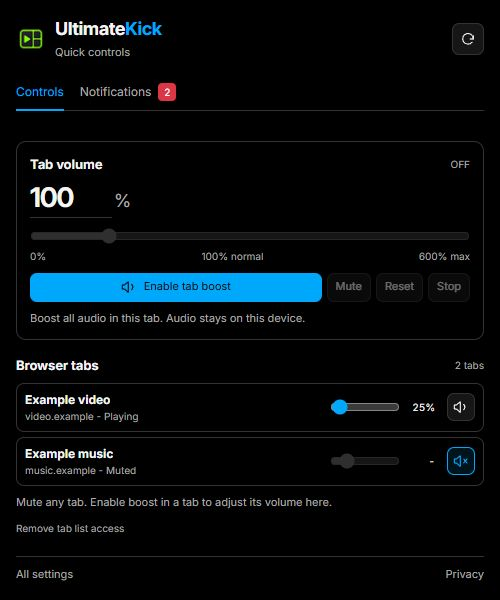
Other Kick tabs lists muted streams too. Its 0-100% slider and speaker change one stream without switching tabs; the tab-shaped button mutes all audio in that tab. Click the channel name to activate its existing tab/window and focus the selected workspace tile. Duplicate names remain separate tabs.
Choose the right audio control
| Control | Scope |
|---|---|
| Stream volume / mute | One native player or workspace tile, 0-100%. Raising volume unmutes it and keeps native controls synchronized when supported. Hidden controls are reopened during the change; success requires confirmation from the native slider and media. |
| Tab volume | All audible players in the selected normal web tab, 0-600%. A silent or muted player still has no audio. |
| Whole-tab mute | All audio in another tab. Uses its existing UltimateKick boost when enabled, otherwise Chrome's tab mute. |
Activate the intended web tab
Open its toolbar icon there; an invocation on another tab does not grant new capture. Normal HTTP/HTTPS pages are supported; Chrome internal and other restricted pages cannot be captured.
Enable tab boost
Accept the optional tabCapture/offscreen permissions. Chrome 116+ is required. Capture begins at 100%.
Adjust or stop
Edit the percentage or drag the slider. Mute preserves gain, Reset returns to 100% and unmutes, Stop releases capture. Closing the menu does not stop active boost.
Manage other websites' audio
Choose Show browser tabs
Chrome asks for optional tab-list access. This allows titles and audio state for other open web tabs to appear; it reads no page content or saved browser history.
Mute or switch
Use the speaker to mute the whole tab, or click its title to activate the existing tab/window. This does not start capture.
Adjust an enabled boost
An already enabled UltimateKick boost has a 0-600% slider. If it is unavailable, switch to that tab and enable boost from its own toolbar menu first.
Remove access when wanted
Remove tab list access revokes the optional list permission. Stop independently enabled boosts from their own tab menus.
 Enlarge
Read your shared notifications
Let Kick identify your account
Personal toolbar alerts detect your username from the rendered Kick account avatar. Your Kick username (optional override) takes precedence; aliases remain available in Chat settings. The separate Received replies view can stay off.
Choose sources
The settings icon toggles mentions, replies, important tool messages, Favorites live, Following live and the unread badge. Sources start on; OS desktop alerts remain separately off.
Open a notification
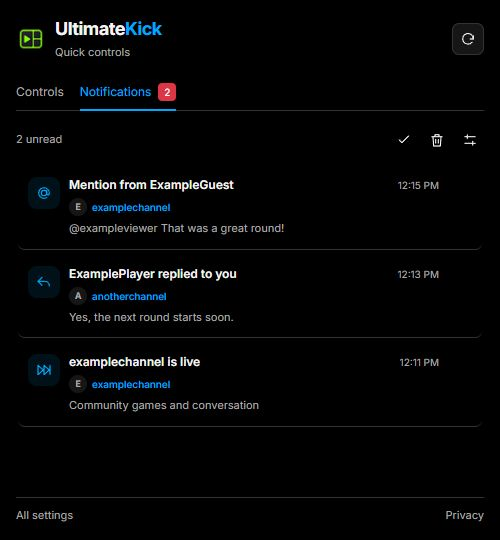
Each row has an event icon, title, channel with a small avatar or initial, text and time. Click it to mark read and focus/open that channel. The check button marks read without navigating. Settings do not open automatically.
Manage unread entries
The unread count is red. Mark all read and Clear are explicit; opening the tab alone changes no read state. Repeated delivery keeps a notification's existing read state.
The shared inbox is readable on any page, including after its source Kick tab closes. It shows the latest 50 of at most 200 short session entries. Show new updates applies pending arrivals without replacing a list you are reading. Read and Clear apply across toolbar menus. Loaded history and recognized refresh duplicates do not become new alerts.
 Enlarge
Keep receiving activity in the background
An open Kick tab can receive mentions/replies and live transitions without focus or an open popup. Live checks run about every two minutes. The first successful periodic sample is a quiet baseline, not a flood of alerts for already-live channels. Supported native Kick live-start toasts can also provide an immediate alert, mapped to Following and to Favorites for saved channels.
Written for version 1.1. Some controls may be unavailable in an earlier installed release. See release notes.