As many layers as your edit needs
Add crops from the same source, other videos, images, text, captions and shapes. Keep one original audio stream when several crops share a video.
 UltimateKick
Studio Beta
A local editing space for your best moments.
Build the frame, shape the story and make the next cut your own.
Studio Beta is available in UltimateKick 1.2.0 for Chrome and Firefox desktop.
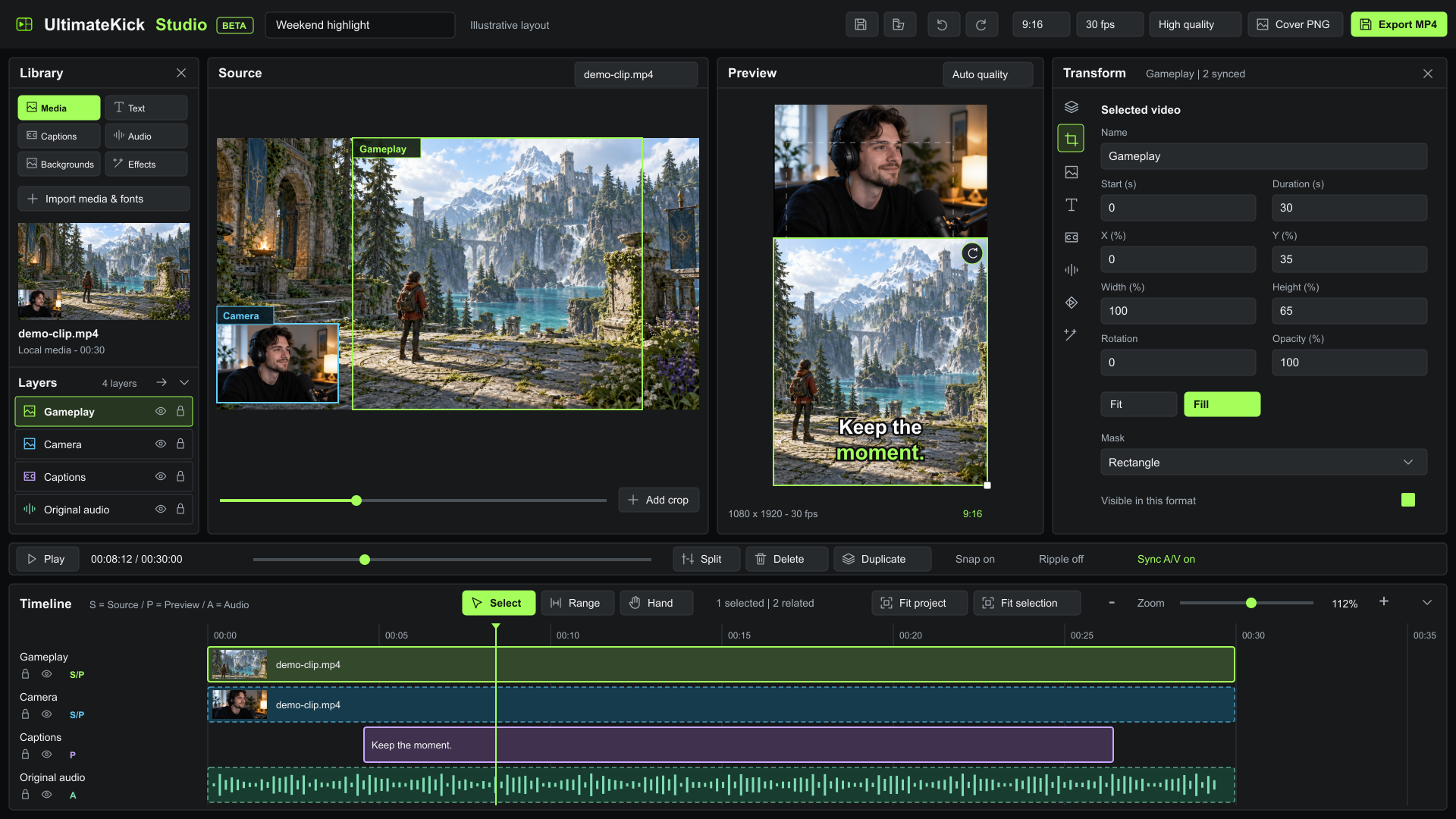
Bring together several clips on one project timeline. Once imported, your local copy stays with the project, independently of the original Kick tab.
Select or drop videos, audio, images, fonts and subtitle files. Add more material as the edit grows.
Paste a clip link or browse clips from a channel inside Studio. Access is requested for the selected metadata/media hosts.
Send a selected Discovery clip or edit an available native clip or ready Autoclipping moment. Add it to your project or start another.
Unavailable, expired or unsupported sources report their own error. Browser and source support still determine which media can be imported.
Keep the camera and gameplay, focus on one detail or stack a whole composition. Single, Top/Bottom and Picture in Picture are starting layouts, with no two-crop ceiling.
Add crops from the same source, other videos, images, text, captions and shapes. Keep one original audio stream when several crops share a video.
Move, scale, rotate, flip and mask layers. Drag the Rotate handle in Preview, snap by 15 degrees with Shift, or enter exact values. Keep the opened Source visible while selecting captions and overlays. Lock proportions, align to guides and choose Fit or Fill. Save separate compositions for portrait and landscape.
Choose a solid color, gradient, image, video or moving blur. Adjust blur, zoom, darkening, opacity and grayscale, including on image/video backgrounds. Set different backgrounds for individual scenes.
Animate transforms, crop, opacity and effects with editable keyframes. Start from Fade, Slide, Zoom or Pop. Use Crossfade, Dip to black, Wipe or Slide transitions with an audio crossfade.
Choose from 14 local font families, including comic Bangers and DynaPuff, bold Anton and Archivo Black, and rounded Titan One, Quicksand, Baloo 2 and Nunito, alongside the six original families. Import TTF, OTF or WOFF2. Set weight, size, spacing, alignment, outline, shadow and background, then edit the words directly in Preview.
Adjust brightness, contrast, saturation, temperature, grayscale, blur, vignette and opacity. Reorder, disable or reset effects. Copy appearance to compatible layers, with optional transform and crop.
Keep Source and Preview above the full-width timeline. Collapse or move Layers under Library, resize panels and use the compact inspector categories. The workspace remembers your layout; Reset workspace layout restores it. The popup Studio tab keeps local import/export/download history with Clear history and no desktop alerts.
See what is selected and what will move with it. Video crops and their audio stay synchronized; text, captions, images and shapes trim independently.
Move, trim, split, delete, duplicate and copy/paste clips on separate tracks. Use gaps or overlaps, frame snapping, linked A/V and manual groups. Attached overlays follow a clip when you move it.
Delete range leaves a gap. Ripple delete range closes it on your target tracks. Choose All tracks explicitly for a whole-montage range edit.
Thumbnails, audio waveforms and matching Source/Preview/Audio colors identify each track. Visible trim handles, snap guides and affected outlines explain the edit before you commit.
Use Fit project, Fit selection and pointer-anchored zoom. One finished gesture is one Undo step; Escape cancels it. Lock layers to protect them.
Prepare captions and audio on your device, then review the result in the same montage.
Generate captions locally from a selected clip after an optional model download. Choose the spoken language, follow staged progress, cancel or retry. GPU audio analysis is optional; speech decoding uses CPU / WASM.
Edit manual cues, import/export SRT or VTT, correct word timing, restore highlighting and split or merge cues. Review all captions with search, text replacement and playback sync. Reflow into short phrases while retaining corrected text and word times where possible.
Style the font, outline, background and current-word highlight. Editable safe-area guides help keep words away from portrait interface overlays.
Caption guideImport music and sound effects, extract or replace the original audio, or record commentary from the playhead. The microphone is requested only when recording; monitoring starts off.
Mix multiple tracks with volume, panorama, mute/solo, fades, looping and volume keyframes. Use track/master meters and a master limiter.
Normalize toward -16 LUFS with peak headroom. Duck selected music under a voice track, or find quiet-gap suggestions and approve cuts yourself. Preview and export use the same audio-processing curves.
Audio guideSpeech recognition can make mistakes. Review captions and timing before export. Guides are adjustable and stay out of the exported video.
A full template keeps the montage around your material: layers, crops, effects, motion, caption settings, audio preparation, backgrounds and both formats.
Choose replaceable sources and included media. Keep a fixed intro/outro and let the main scene fit a new source range.
New from template creates a separate project. Shared camera/gameplay crops need one source assignment.
Run the saved audio/caption steps with per-material progress, cancel and retry. New speech is generated afresh; manual corrections stay protected.
Save general or channel templates, choose defaults and move them between devices as .uktemplate files. Included logos, fonts, music and intro/outro are independent copies. Replaceable footage and the speech model are not bundled into the template.
Build a reusable templateExport the complete edit or save named ranges for several cuts. Queue the current format or both formats, with progress and cancellation.
| Format | Resolution | Frame rate |
|---|---|---|
| Portrait 9:16 | 1080 x 1920 | 30 or 60 fps |
| Landscape 16:9 | 1920 x 1080 | 30 or 60 fps |
H.264 video and AAC audio, with Standard or High quality. Save a Full HD cover PNG from the playhead. Cancelling a queue keeps completed files and your project.
MP4 needs a supported native H.264 encoder. AAC uses the native encoder or the bundled local fallback. Studio checks codec configuration and storage before export.
Edits autosave with imported media in this browser profile. Save project creates a portable .ukstudio file with its media; Load project restores it as a separate project.
View storage use, delete individual projects and remove the optional speech model separately. No automatic deletion of other projects is used to make space.
Studio editing, caption recognition, audio analysis and encoding run locally. Selected Kick sources and the optional speech model need downloads. There is no developer upload service or cloud editing account.
This is a desktop extension editor. It does not publish to social platforms, add face tracking, change clip speed or create proxy media. Source/codec support, browser resources and local storage still apply.
Read PrivacyTask-based instructions for the complete Studio workflow, including defaults, controls and browser limits.
Studio Beta is available in UltimateKick 1.2.0 for Chrome and Firefox desktop. The editor illustration uses fictional media and shows an example layout. Export depends on the browser's available codecs; see the guides for source and storage requirements.
Follow the release notes