
Make your first workspace.
Install UltimateKick, open your streams and find the controls you need. Start small, then make the workspace your own.
Before you start
- Chrome with UltimateKick installed
- A Kick channel open and refreshed after installation
- Sign in to Kick for account actions such as sending messages or publishing clips
Install and open Toolkit
Install from the official listing
Use Add to Chrome in the UltimateKick Chrome Web Store listing, then refresh any Kick pages you already had open.
Find UltimateKick
Open UltimateKick from Kick's sidebar. The player tools and Kick's Chat Settings menu also provide entry points. Use Toolkit for the settings and live tools.
Keep enhancements enabled
In General, check Enable toolkit enhancements. Optional services, automatic clipping, desktop notifications and ad blocking each have their own controls.
Add your first streams
Add a second channel
Choose Add stream in the workspace and enter a Kick channel. You can also use a channel card's Add to Multiroom button.
Choose a layout
Grid gives each stream space. Focus puts one stream first with smaller previews. Custom lets you arrange tiles yourself.
Choose what you hear
Use each tile's mute control. Additional streams start muted; choose deliberately which audio you want.
Bring chat into view
Open Chat. Pick a channel tab for native chat, or use Mix and select the chats you want to combine.
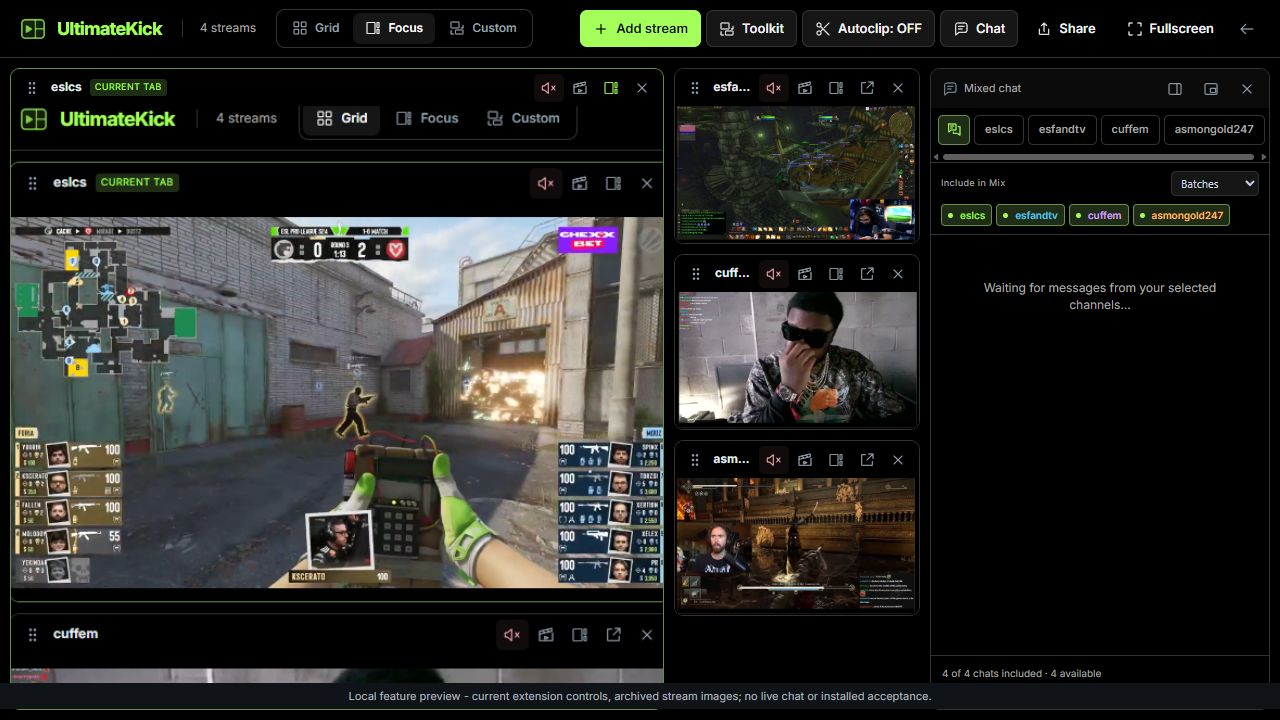 Enlarge
What do you want to do?
Save the last 180 seconds
Get a recent moment on disk without recording all day.
Read guideFind moments with Autoclipping
Try detection in test mode before choosing automatic outputs.
Read guidePlay with your viewers
Five games, timed rounds and a shared leaderboard.
Read guideDownload a clip or VOD
Choose quality, format and a supported time range.
Read guideKeep track of mentions
Collect new mentions and choose sound or desktop alerts.
Read guideSave your workspace
Name your setup and come back to it later.
Read guideSettings and live activity
| Place | Use it for |
|---|---|
| Toolkit on Kick | Change preferences and use tools tied to the open players and chats. |
| Extension Options | Change saved preferences without an open workspace. Live entries, recordings and game rounds still need their Kick page. |
| Sessions | Save channels and the workspace setup. |
| Backup | Export or merge supported local preferences and sessions. |
A good first setup
A button is missing. What should I check?
Check the installed version, refresh Kick after an update, confirm enhancements are enabled and open the relevant Toolkit tab. Small players hide some labels and wide-only controls.
Do I need to enable every optional feature?
No. Multiview and local settings work without community emote providers, subscriptions, desktop alerts or automatic outputs.
Find an option quickly
Search settings... matches labels and explanations across categories. Results highlight your phrase; selecting one opens its category and section and focuses the control without changing its value. Expand the left category list to navigate sections; the active section follows your scroll.
Written for version 1.1. Some controls may be unavailable in an earlier installed release. See release notes.