
Build your edit with layers, sound and captions.
Create a local layered video project with crops, backgrounds, audio, captions and Full HD MP4.
Studio Beta in 1.2.0
Explore the Studio workspace
Studio has its own product page at /studio.html and six detailed guides in the Studio category. The illustration below shows Source/Preview, a compact inspector, Layers docked under Library and the full-width timeline.
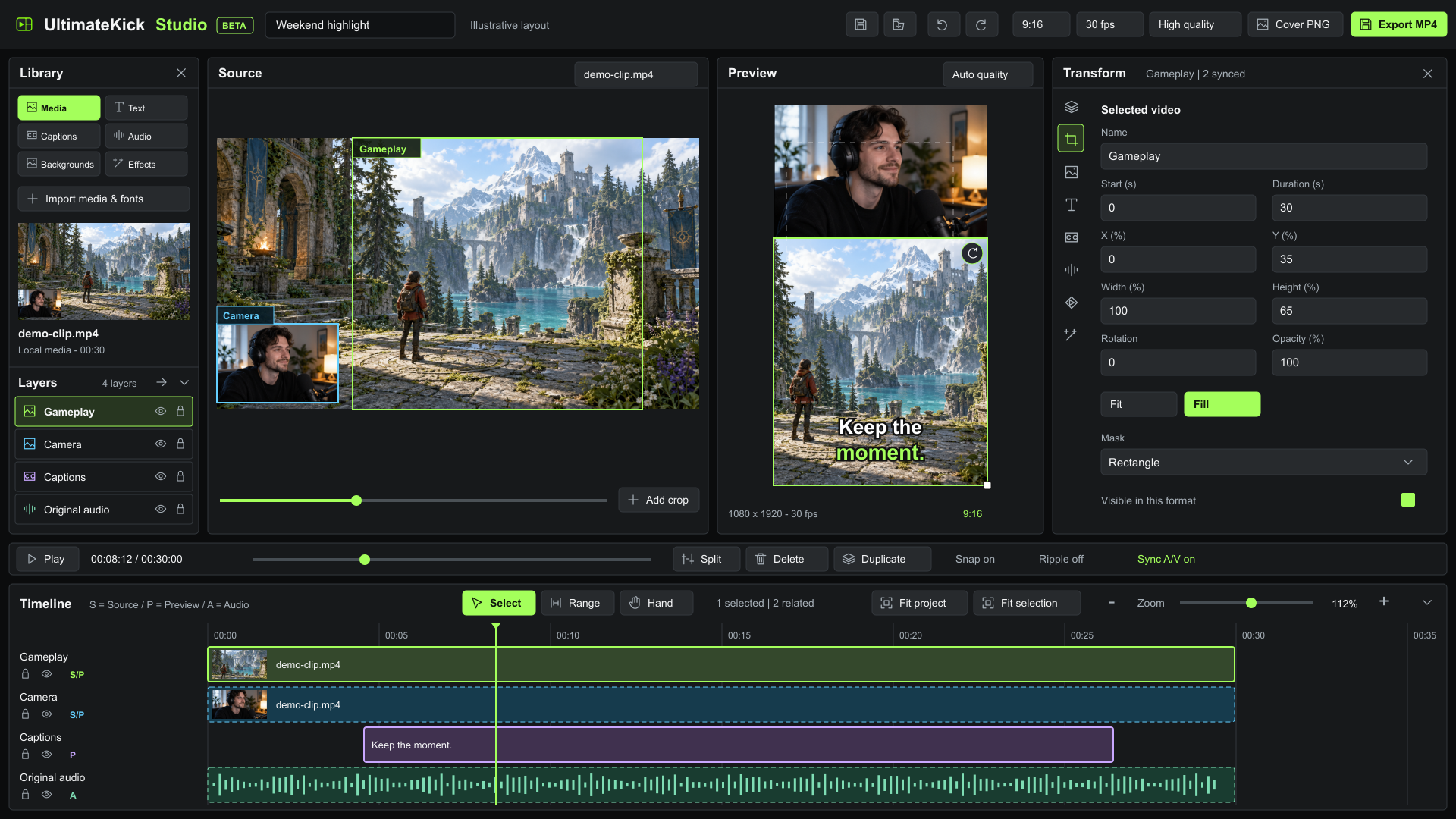 Enlarge
Bring material into Studio
Open Studio
Choose Studio (Beta) in the toolbar. Reopening focuses the existing editor tab.
Import media & fonts
Select or drop supported videos/audio, PNG/JPEG/WebP images, TTF/OTF/WOFF2 fonts or SRT/VTT subtitles. Imports keep a local copy.
Import a Kick clip
Paste a clip URL or choose Browse channel. Discovery offers Send to Studio; native clips and ready real Autoclipping moments offer Edit in Studio.
Review access
Public metadata and chosen media hosts use optional access. Missing or expired sources have individual errors; other project media remains.
Arrange layers and backgrounds
New projects use 9:16, a 35/65 Top/Bottom arrangement and a blurred background. Add crop creates more linked views from a source without doubling its audio. Add other videos, images, text and shapes on separate tracks.
Move, resize, rotate or flip layers; choose Fit/Fill, opacity, masks and exact positions. Use Single, Top/Bottom or Picture in Picture starters. Each format retains its own arrangement. Backgrounds offers Solid, Gradient, Image, Video and a moving Blur with zoom/darkening controls.
Select and organize layers
Click a shape, image, video or text in Preview. Alt+click cycles overlapping layers. The Layers list shows all elements, including hidden or locked ones; use All project layers or At playhead. Collapse Layers leaves only its header. Move Layers to Library puts it below the left library, freeing the right inspector; the button also moves it back. Dock position, height and collapse are remembered and reset with the workspace. Ctrl/Cmd+click selects several. Selecting an out-of-range layer moves to its start.
Use the vertical inspector icons for Transform, Crop & image, Text, Captions, Audio, Animation, Effects, Transitions, Background and Channel templates. Only that category is shown. The compact header combines the category, selection and related count, with tooltips for long names. Resize the Layers divider or expand/open its list with the Layers icon. Studio has no permanent footer: task progress and dismissible messages appear when needed. Privacy and Licenses are together in the toolbar popup. Layers Copy copies explicit elements; Delete follows visible selection, edit groups and Sync A/V, and bypasses time-range mode. Attachments remaining after deletion retain their position. Timeline operations show related affected layers. Overlay trimming is independent.
Matching colors identify the same track in Source crops, Preview selection, Layers and timeline. S/P means Source and Preview, P is Preview only, A is audio. Change a track color from its layer row; Raise/Lower changes track stacking.
Control the timeline
The timeline spans the full bottom width. Source/Preview, Library and the icon-based inspector remain above. Sync A/V, segment attachments and manual Group/Ungroup have separate editing scopes. Overlay trimming stays independent; moving media carries Follow clip attachments.
Select elements
Select (V) uses click, Ctrl/Cmd+click or a rectangle from empty space. Shift adds rectangle results. Clicking the ruler seeks. Solid outlines mark selection; dashed outlines/counts show related affected layers.
Choose time and tracks
Range (R) offers drag, In (I), Out (O), numeric bounds and range handles. Selected tracks is the default: use header Target buttons. No target blocks the edit; choose All tracks explicitly for the full montage.
Trim or remove
Edge handles update actual lengths and show Start/End/Duration/delta. Snap uses visible guides; Alt disables it temporarily. Ripple starts off. Delete range leaves a gap; Ripple delete range closes it and shifts later segments/attachments. Locks and transition overlap stop unsafe edits.
Navigate and zoom
Hand (H) or middle mouse pans. Use -/+, logarithmic Zoom, Fit project/selection, or Ctrl/Cmd+wheel at the cursor. Buttons retain the visible playhead or view center. Shift+wheel scrolls horizontally. Edge scrolling continues a drag.
Use a narrower window
Below 1200 px, switch Source/Preview and open Library/Properties individually. Resize panels/timeline, or Reset workspace layout. Local layout and up to 20 recent zoom/scroll states are separate from montage files.
One completed gesture is one Undo/autosave. Escape/pointer cancellation restores its start. S splits in the timeline; Delete in Layers bypasses time ranges. Inputs retain native shortcuts. Right-click for Edit independently, Select entire segment and Detach from clip. Follow clip can also be set in Properties. Explicit groups are selected visibly; multi-selection shows its count instead of unrelated single-layer fields.
Style text and captions
Text offers bundled fonts, imported fonts, weight, italic, size, color, outlines, shadows, backgrounds, alignment and spacing. Double-click the selected output text to edit it. Save text styles within the project.
Captions supports manual cues and SRT/VTT import/export. Drag or trim cue blocks, edit text/timing, split/merge cues or apply an offset. Text corrections retain saved word times where possible. Inserted words receive estimated timing. For older edited captions, select the cue and choose Restore word highlighting in the Captions inspector; missing times are estimated within that cue. Fine-tune individual word times below or use Undo to restore earlier data.
Download a local speech model
In Captions, choose Download / verify model and grant its known delivery hosts. The model is roughly 80 MB and can be removed separately.
Generate captions
Select a video or audio clip and its spoken language (English by default). Speech processor defaults to Auto (GPU + CPU). GPU mode accelerates audio analysis while speech decoding stays on CPU; CPU / WASM is also available directly. Choose Generate from selected clip. After download, recognition runs locally and can work offline.
Review the result
Generation adds a new caption layer in one Undo operation. Review recognition and synchronization; existing manual layers are kept.
Mix audio or record commentary
Add music/effects, extract original audio or Replace audio. Adjust layer/track/master volume, pan, mute/solo, loops, fades and volume keyframes. Meters show track/master levels; the master limiter constrains peaks.
Record from playhead
Open Audio, select a microphone and timing offset, then Record from playhead. Permission is requested when recording.
Finish commentary
After the countdown, the montage plays while recording. Microphone monitoring is off. Choose Stop recording in the task bar; the WAV is saved locally and placed at the original playhead.
Retake
Retake last commentary replaces the earlier timeline instance only after a successful new save. A failed or denied recording keeps the previous take; Undo retains earlier edits.
Resize and style images
Imported images start centered and fitted with their aspect ratio locked. Properties opens automatically. Use Scale, Zoom in/out, Fit image, Opacity and Grayscale; drag the image or its corner, or enter exact dimensions and rotation.
Backgrounds keeps a working Blur option for Image and Video, with opacity and grayscale. Image backgrounds also support Fit/Fill and zoom-out. Choose the media first; foreground layers may cover it. The area outside the project canvas belongs to the viewer.
Add motion, effects and transitions
Fade, Slide, Zoom and Pop entrance/exit presets create editable keyframes. Animate transforms, crops and effect amounts with Linear, Ease or Hold interpolation. Add opacity, brightness, contrast, saturation, temperature, grayscale, blur or vignette effects. Adding one opens its controls in the Effects inspector. Opacity (%) ranges from 0 (transparent) to 100 and multiplies the layer opacity; it supports keyframes. Reorder, disable, reset or delete effects.
Crossfade, Dip to black, Wipe and Slide transitions start at 0.3 seconds. Select adjacent clips on one track. The transition creates visible overlap and shifts later linked clips; associated audio crossfades. Undo or remove the transition to restore the edit.
Reuse channel templates
Save clip templates for a channel/format with crops, backgrounds, text, linked audio, proportional timing and motion; choose a default for matching video imports. Applying is undoable. Referenced fonts, images, videos and audio are retained locally apart from the source project. Settings backups contain template metadata, not those files; missing media requires saving/importing it again.
Save Full HD MP4
Choose format and frame rate
Use 9:16 or 16:9 and 30/60 fps. Preview quality is independent of output. The main toolbar offers High quality or Standard quality.
Export MP4
Output is 1080x1920 or 1920x1080 with stereo audio. Native H.264 and available storage are checked; audio encoding remains local.
Save or cancel
Editing locks while exporting. Follow encoding/finalization progress, then Save MP4. Cancel removes incomplete output and retains the project.
Save or load a project file
Save project
Use Save project in the toolbar to write one .ukstudio file containing the edit, both-format layouts, captions and all imported video, audio, images and fonts. Choose a destination when a supported save picker is available; otherwise check browser downloads.
Load project
Use Load project, or drop one .ukstudio file into Studio. Its metadata and media are verified before a new project appears. Existing projects are kept.
Cancel or retry
The task bar shows progress and Cancel. Damaged files and quota errors stop without replacing other projects; incomplete imported copies are removed.
Review Studio activity
Open the Studio tab
Choose Studio in the toolbar popup, then Open Studio (Beta) to open/focus the editor. Controls and Notifications remain separate.
Read local outcomes
Review up to 100 queued handoffs, completed imports, ready MP4 files, download requests and cancelled/failed tasks. Caption/model and project/template file operations also appear. No desktop alerts or unread badges are generated.
Save and retry
After Save MP4 requests the browser download, its floating action hides. Exported files keeps Download again until the temporary result is discarded or cleaned. Check browser downloads for completion; history contains summaries only.
Clear history
Removes event summaries without deleting projects, templates, models or downloaded files. History stays in this browser profile across restart, is excluded from backups/portable files and drops older events at 100.
Understand Group / Ungroup
Group selected layers for shared timeline editing without merging tracks. Matching G1/G2 badges, member counts and a confirmation show the result. Click or rectangle-select a member to select the whole group. Use Edit active layer independently and Select entire group to switch scope; Ungroup keeps Sync A/V and Follow clip separate.
Group needs at least two layers; range-mode, locked or already single-group selections have unavailable actions with explanations. Grouping changes membership only, without moving/trimming clips or adding a combined Preview transform. Each change is one Undo step.
Manage local projects
Projects autosave with imported media in this browser profile. Earlier Studio projects migrate with a retained metadata backup. Delete project also clears its media/cache. Clear Studio projects & media keeps channel templates, downloaded speech models and downloaded output files. Remove downloaded model frees model storage.
Quota errors stop writes without removing another project. Browser clearing, uninstall or eviction can remove local projects; keep independent originals and outputs. Studio has no fixed two-crop or ten-minute limit; project complexity depends on available resources.
Start from a full montage template
Save full template
In Media, name the template, mark replaceable sources and keep fixed media such as logos/music/intro. Both layouts, layers, effects, motion, captions configuration, audio and export ranges are retained.
Define scenes
Fixed duration preserves intro/outro. Fit source adapts to a new source range and moves later scenes. Review boundaries, driving sources and saved transition overlaps.
New from template
Assign local/library sources, a Kick link or channel clips. Pending handoffs offer Use full template. One source feeds its linked crops/audio; the earlier montage is kept as a separate project.
Prepare and review
Fresh captions use the new recording. Follow each material/step, Download model when required, Retry failed steps or Skip step. Manual caption corrections are protected. Quiet gaps remain suggestions and export starts separately.
Full templates keep independent included media. Export template/Import template moves a .uktemplate file between browsers without bundling replaceable footage or model weights. A channel default takes priority over the general fallback on a first video import into an empty project. Existing clip templates remain separate.
Correct captions without cutting video
Review captions
Open Media > Review captions. Search one or all layers; Find/Replace uses exact case-sensitive text. Choose the style source to apply its styling to the selected scope.
Find the moment
Click a word to seek; Shift+click another to mark a phrase, or Select cue on timeline. Text correction itself never deletes video.
Reflow captions
Defaults are four words and at most two lines, respecting punctuation and pauses. Corrected words and existing times are retained; estimated timings remain labelled.
Keep captions within your guides
Preview > Safe area sets approximate margins and snapping. New portrait projects enable 10% top, 22% bottom, 6% left and 16% right margins; horizontal/older projects disable guides unless configured. Selected text outside them gets a warning. These adjustable guides never appear in MP4 or cover PNGs.
Right-click Preview for Copy appearance/Paste appearance. Paste effects/style and optionally the current-format transform/crop without changing source, words or timeline timing. Add scene background creates a silent timed layer for one clip/range.
Prepare voice and music
- Normalize loudness-16 LUFS; +12 dB maximum boost
- Select source clips in Audio > Prepare audio. Local measurement retains manual gain/keyframes and leaves sample-peak headroom; silence stays at unity.
- Duck music12 dB reduction by default
- Choose explicit voice tracks and a separate music track. Smooth ducking uses the same envelope in preview/export; it does not separate speech from an existing game mix.
- Find quiet gaps-40 dBFS; minimum 1 second
- Review amber timeline proposals, listen/ignore and approve individual cuts. Padding is 150 ms; approved global cuts form one Undo operation. Locks and transition guards stop partial edits.
Source edits can invalidate processing. Use Recalculate outdated processing or clear/disable it before exporting. No audio is sent to an analysis service.
Export several shorts
Save range
Mark In/Out on the timeline and name the range. Timing edits may require Review/Confirm range.
Export MP4
Choose the whole montage or selected ranges and the current or both formats. The frozen project encodes sequentially with progress and size estimates.
Save results
Completed results remain under Exported files after cancellation. Save MP4 requests a browser download and hides the floating action; Download again is available in the result row. Save before closing because temporary outputs are cleaned on a later Studio start. The popup Studio history keeps summaries, not downloadable MP4 copies.
Save cover PNG
Render the playhead at 1080x1920 or 1920x1080 using original media/fonts, without guides.
Written for version 1.1. Some controls may be unavailable in an earlier installed release. See release notes.