Chat layout & Mix
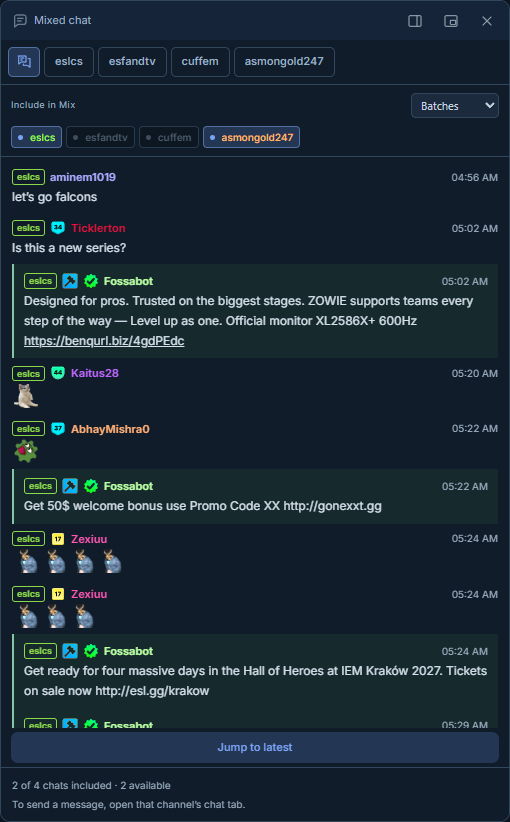
Dock or float chat, switch native channel tabs and decide which conversations belong in Mix.
Find it in: Workspace/Chat
Choose native chat or Mix
| View | Use it for |
|---|---|
| Channel tab | One native channel conversation and its composer. |
| Mix | A combined view of the source chats you include. |
Mix keeps source channel labels, native badges and emotes. It is a viewing feed; use the intended channel's native composer when you want to send a message.
Include the right conversations
Open the source chats
A muted player can still have an open chat. Keep the chats you want available.
Select Mix sources
Include the channels whose messages you want to combine. Opening a new stream does not mean every tool automatically selects its chat.
Adjust delivery
Use the available live or batch delivery choice to suit how quickly you want Mix to update.
 Enlarge
Dock or float chat
Use chat's workspace controls to dock it beside the streams or move it into a floating panel. Resize it for a comfortable line length. A floating chat can be moved without changing the stream layout.
Visible chat and retained activity
Mix's on-screen feed has a separate 500-row display cap. The local activity buffer can retain more previously observed messages when configured, without mounting them all in the feed. Search and user history operate on retained local activity, not a remote transcript.
Common questions
Does Mix send a message to every channel?
No. Native account actions belong to the selected channel's composer.
Why is a stream missing from Mix?
Confirm its chat is open and included. Offline or closed source chats cannot provide new messages.
Does muted audio stop chat detection?
No. Chat availability and a tool's selected sources are separate from video mute.
Written for version 1.1. Some controls may be unavailable in an earlier installed release. See release notes.